
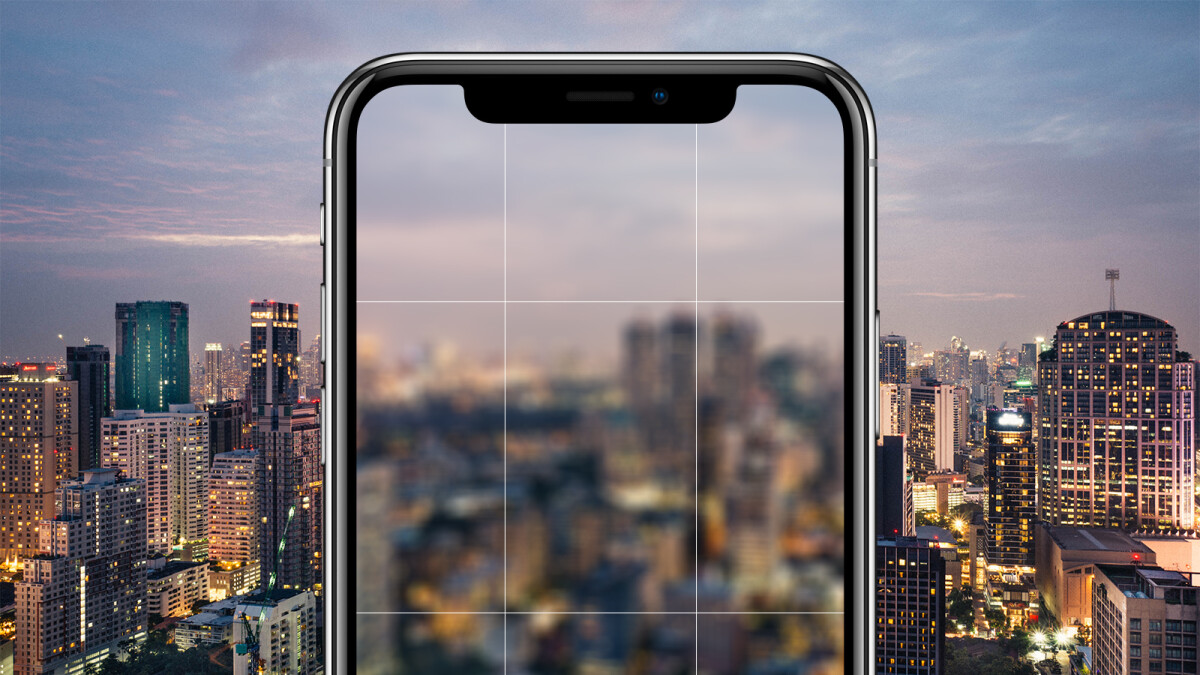
Photographers know how frustrating it can be when an otherwise perfect shot turns out to be a little blurry. There are times when you simply don’t notice the blurriness until after the photo has been taken, and then all your hard work is for nothing. But there’s no need to despair! With a few simple tips and tricks, you can easily restore even the most blurry pictures.
In this blog post, we’ll show you five easy ways to restore blurry pictures so that they look just as good (or even better) as their unblurred counterparts. We’ll cover everything from basic image sharpening techniques to more advanced methods like upscaling images or AI-powered software tools. So if you’re ready to get started on restoring some of your favorite photos, let’s jump right in!
1. Download a picture editor like Adobe Photoshop or GIMP
Downloading a picture editor like Adobe Photoshop or GIMP is an excellent way to unblur a picture that has become blurred due to camera shake. Even if the blur looks severe, a picture editor can usually recover most of the detail while still leaving the photo looking unprocessed and natural. With these powerful tools, it’s now possible to unblur a picture in mere moments right from your own computer! Not only do they make fixing up photos quick and easy, but their huge range of features means you could even end up with a better image than the original.
2. Open the blurry picture in the editor and select the “Sharpen” tool
Picking up the blurry picture makes you curious about what kind of detail lies within it. It is almost like a game of hide and seek, since to anyone looking at it, all they can tell is that there is something hidden beneath the blurriness. But don’t worry – all you have to do is open the blurry picture in an editor, select the “Sharpen” tool, and enjoy the surprise! With a few clicks of the mouse, you can make something that is pleasant to look at emerging out of nothingness. The sharpening tool will take what’s been obscured from view until now and make it much easier for everyone to appreciate whatever image it may be.
3. Apply the sharpened filter to the whole image or just certain areas that are blurry
Applying the sharpened filter to entire images can help bring out important details, making the image look more vibrant and lifelike. Applying it solely to selective areas of an image instead can be potentially more effective. Doing so allows for a greater level of control, allowing for mistakes that may happen with full application to be avoided. Additionally, it provides a high degree of accuracy in focusing on certain elements within an image, such as lines or small objects, that would otherwise not be improved by sharpening the entire image. With these benefits in mind, using the sharpener strategically on specific parts of an image is worth exploring for anyone seeking maximum detail within their work.
4. Save the edited picture and compare it to the original to see if it’s improved
After spending some time editing a picture, it can feel like an accomplishment. Before you move on to other tasks or claim victory, take the time to save the newly edited image and compare it against the original version. This simple step can help to determine whether the edits improved the overall look of the picture or if there are more changes needed. By quickly comparing the two images side-by-side, you can easily identify any differences as well as get a better idea of what might still need adjusting. This effective evaluation tool will surely help you take your digital photography projects to the next level.
5. If you’re not satisfied with the results, try repeating steps 2-4 with different settings or use an AI Image Upscaler
Image upscaling can be a tricky process, and it can be difficult to get the desired result the first time around. If you’re unhappy with your results after following steps 2-4, consider trying different settings or using an AI Image Upscaler. AI Image Upscalers use powerful computing technology to accurately increase image size while also improving its quality. They are also adept at removing JPEG artifacts like blockiness and blurring, which can occur when upscaling images in certain software. Give an Image Upscaler a try – you might find that this is exactly what you need to take your photos to the next level!
Final words
All in all, unblurring a picture is something anyone can do when they have access to the right tools. With a good picture editor like Adobe Photoshop or GIMP, selecting the Sharpen tool and adjusting settings in order to enhance the image’s clarity is an easy task. Of course, sometimes you won’t get results quite as good as you expected. Fortunately, there are other options available like AI Image Upscaler. By following the steps outlined in this post and putting in some patience you can achieve attractive images with minimal effort. Don’t underestimate how professional a great sharpened photo can make your work look!